Hatch Patterns for Revit
installation and use
Step 1: Download the .PAT hatch file
Go to Stone Designer.
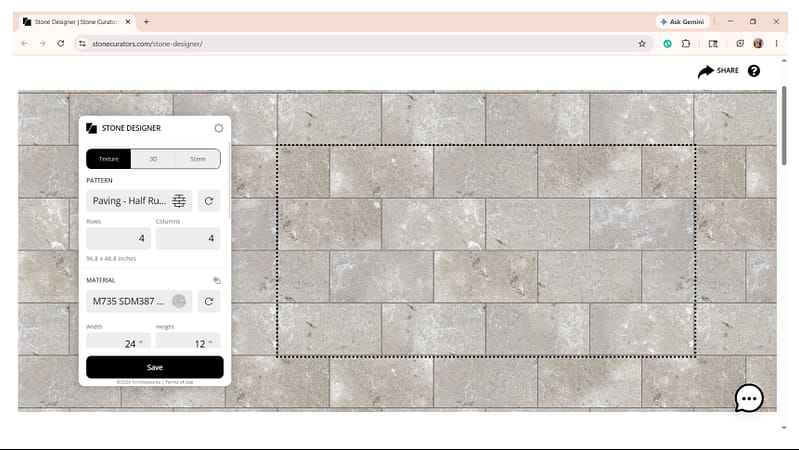
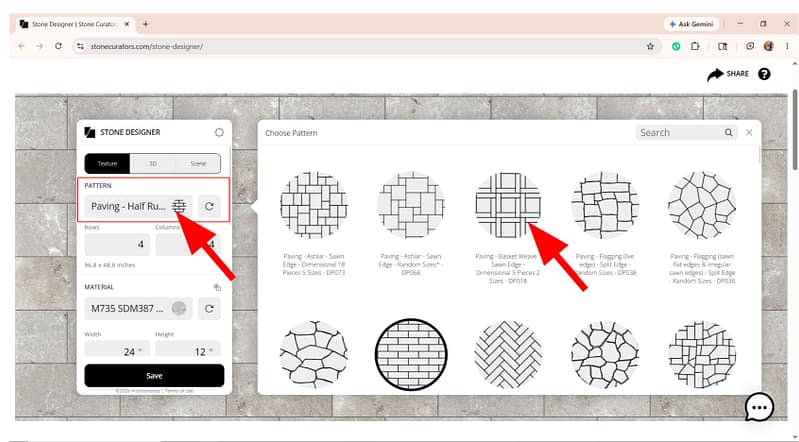
Click on the Stone Pattern Thumbnail to select the hatch pattern you want to download (i.e., Paving – Basket Weave – Sawn Edge – Dimensional 5 Pieces 2 Sizes – DP018 ).
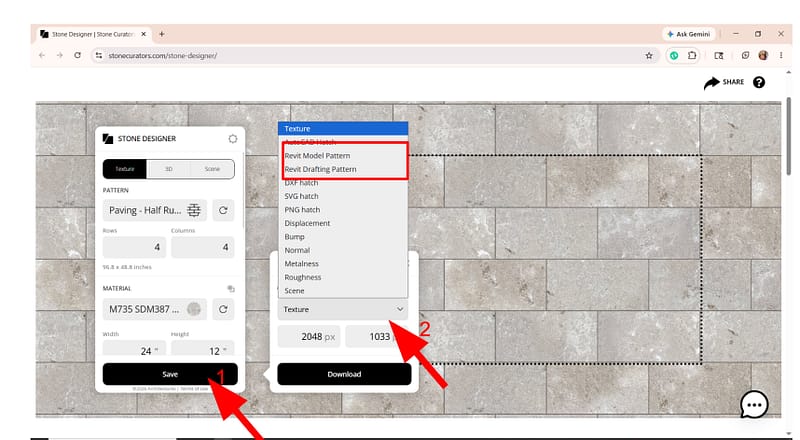
Click on Save.
In this example, we will choose the Revit Model/Drafting Pattern (based on the requirement).
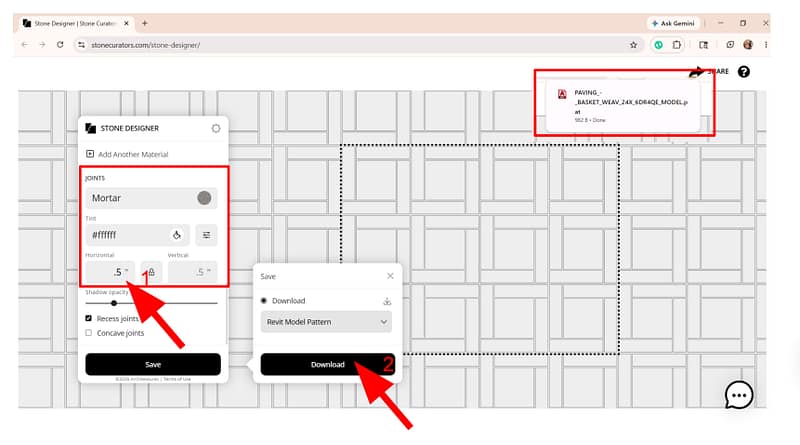
It will show the hatch pattern like the image.
Next, you can adjust the stone size and joint spacing as desired (note that PAT. files have some line-spacing quirks, so you may need to increase the joint spacing to achieve the desired look).
Download the hatch pattern file (.PAT format).
Save the file to your required folder.
Step 2: Load Hatches into a Revit Project
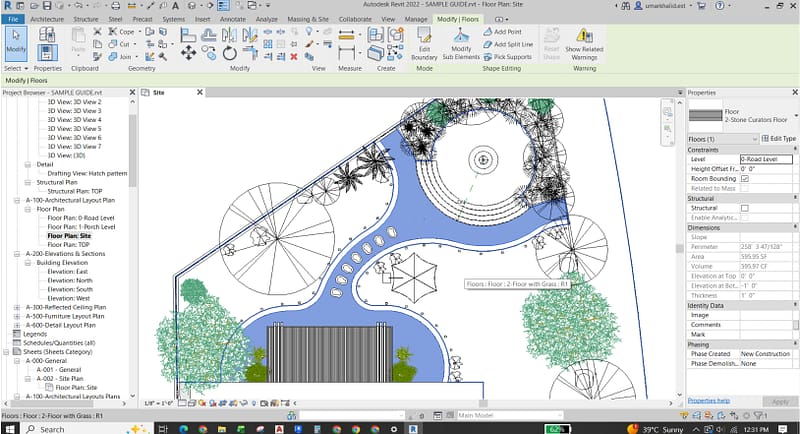
To demonstrate, we will use a sample project that shows a patio/pathway (in blue). The hatch pattern will be applied to this pathway.
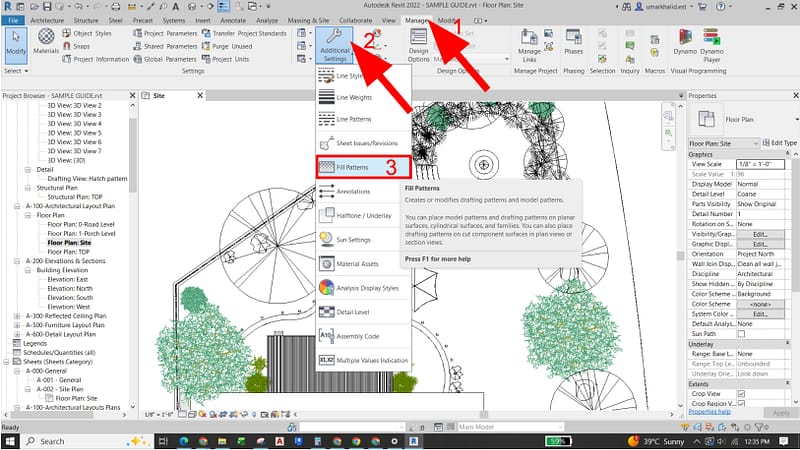
Navigate to the Manage tab on the ribbon.
Click the Additional Settings drop-down.
Select the Option “Fill Patterns”.
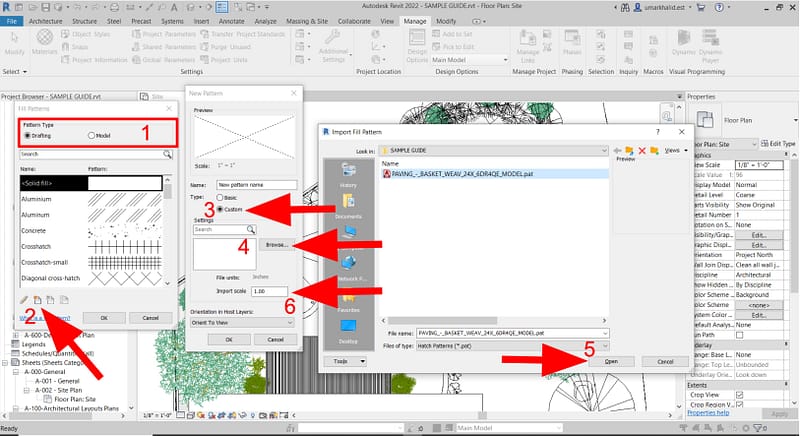
Choose whether the pattern is a Drafting (scale changes with sheet scale) or Model (fixed real-world size) pattern.
Click New Fill Pattern (the blank sheet icon).
Under Type, select Custom to load a .PAT file.
Click Browse to find the downloaded .PAT file.
Select the .PAT file and click Open.
Adjust the Import scale if necessary and click OK to close all the tabs.
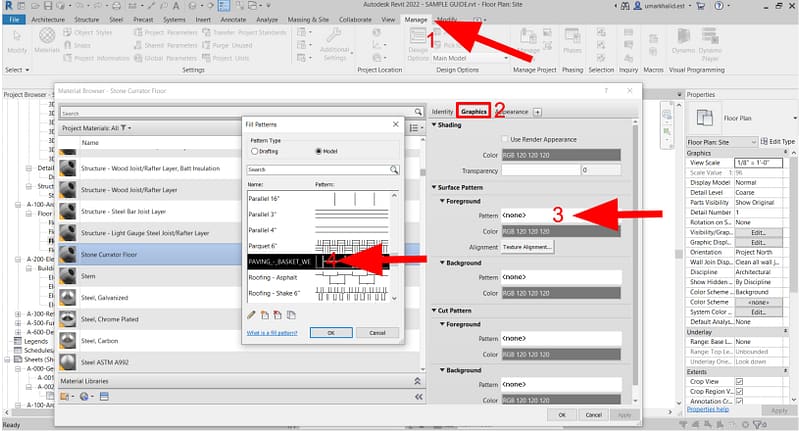
Step 3: Apply the Pattern to a Material
Go to the Manage tab and select “Materials”.
Select your target material (i.e. Stone Curator Floor) to which you want to apply the hatch pattern and go to the Graphics tab.
Under Surface Pattern click <none>.
Select your loaded pattern from the Fill Pattern Tab list and click OK to close all the tabs.
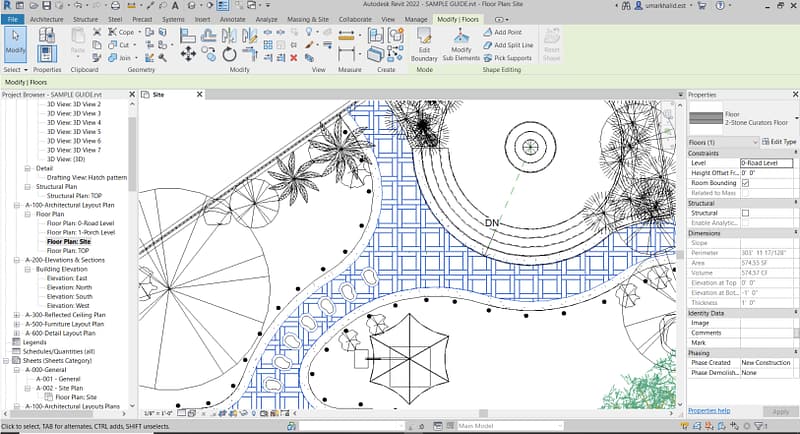
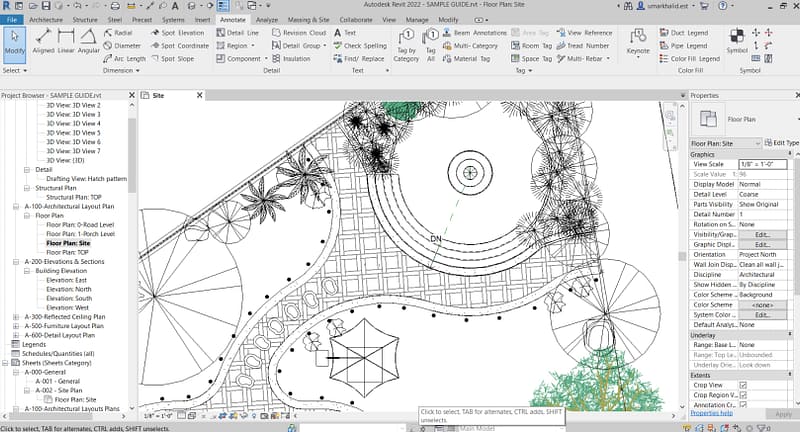
Now you can apply the pattern to your finishing of any element (i.e., the patio pathway).
It will appear like this …
Step 4: Apply as a Filled Region (2D Annotation)
Go to the Annotate tab and select “Filled Region”.
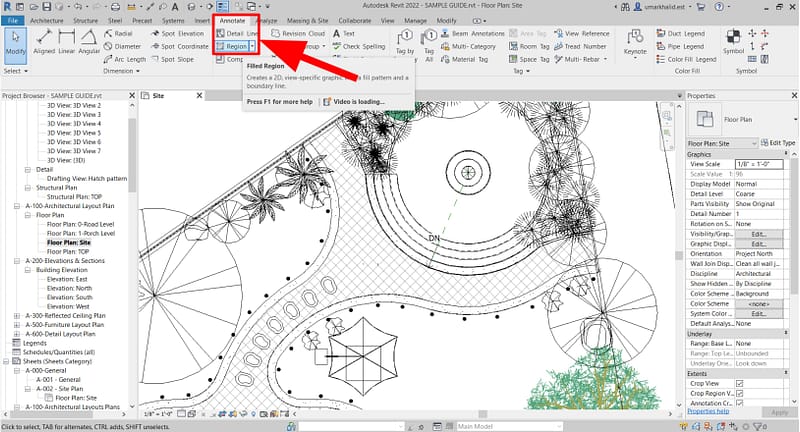
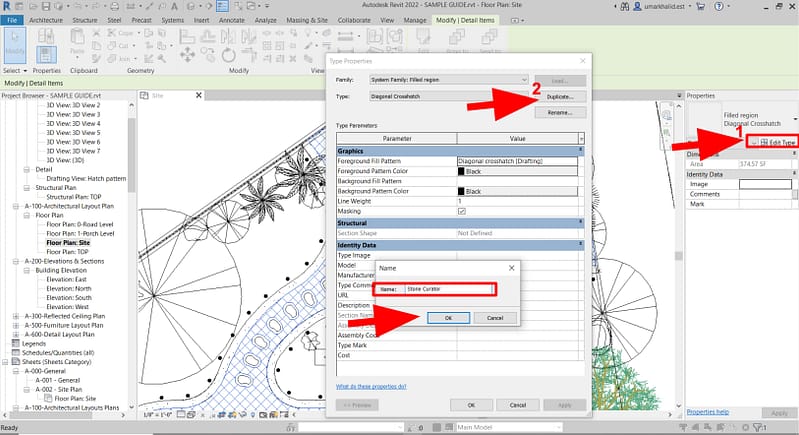
Click Edit Type in the “Properties panel” .
Duplicate the family of filled region to create a new type for Your Pattern, add Name and Click Ok.
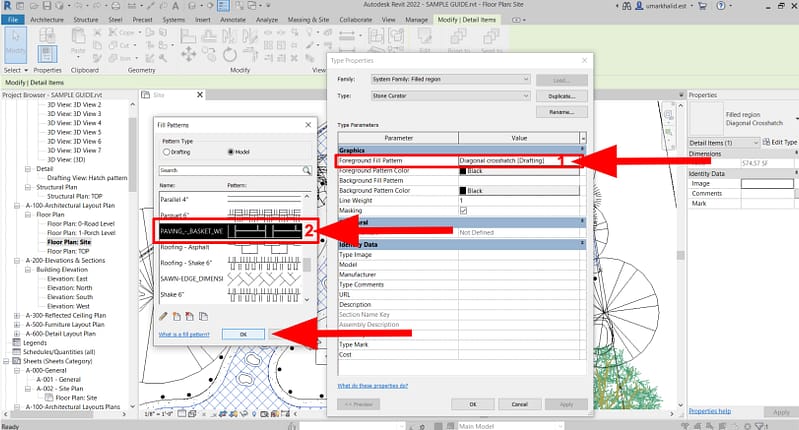
Click the Foreground Fill Pattern tab.
Select our hatch apttern from Fill Pattern Tab Drafting/Model Pattern list and click OK to close all the Tabs
Use the draw tools to sketch the boundary and click the green checkmark to finish.
Now you can apply this hatch pattern to any Filled Regions on any 2D Elements you wish.
IMPORTANT NOTE: AutoCAD, Revit and Vectorworks downloads are in the standard .PAT hatch exchange format. These exchange files work perfectly for hatches comprised of straight sides. For stone patterns with rough edges, the exchange files may not be as perfect. You may see artifacts in the lines due to the limitations of the .PAT file format. These artifacts are most apparent when zoomed in on the hatch, and much less apparent at typical plan scales. In cases where .PAT files are not “good enough” ,consider using a .DXF, .SVG or .PNG hatch format.
Give our natural stone hatch patterns a try and let us know what you think.